

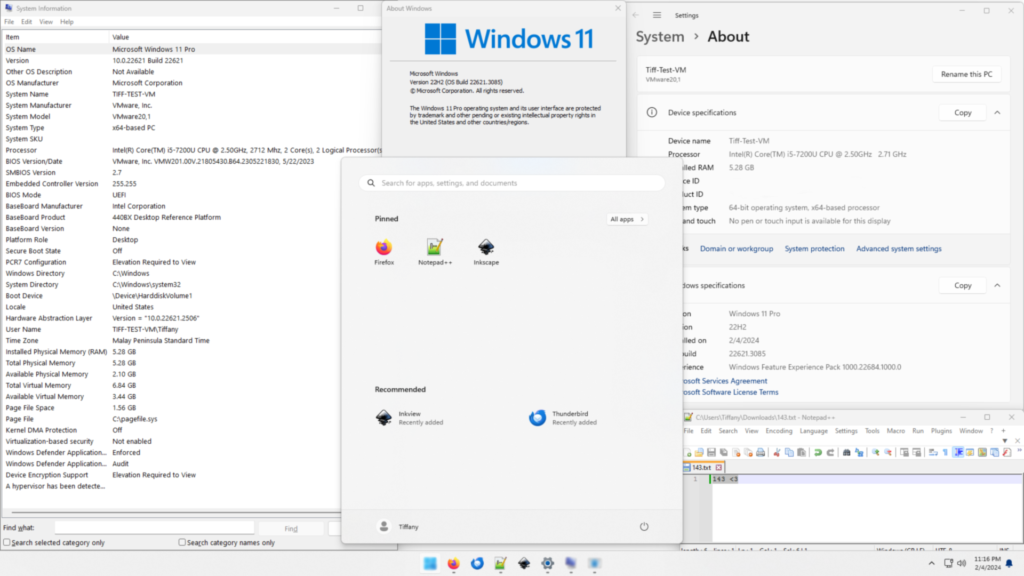
Microsoft’s Windows 11 Search update is testing a redesigned interface that can do more than find files and apps: it can carry out simple actions such as switching to dark mode, adjusting brightness, muting audio and arranging windows directly from the taskbar search box. The preview began rolling out to Windows Insiders on October 7, 2026, but it is not yet a general release for every Windows 11 PC.
The change is part of a wider effort to make Windows Search faster, less cluttered and more useful for everyday tasks. It has also sparked interest among Windows users who have long wanted search to work reliably without extra panels or promotional distractions.
Windows 11 Search update: what changed?
The Windows 11 Search update uses WinUI 3, Microsoft’s modern Windows interface framework. Instead of relying on a large preview area beside a results list, the redesigned Search focuses on a simpler single-column presentation. Microsoft says this should make results easier to scan and reduce unnecessary visual clutter.
The company also reports early improvements in speed and memory use, although those are Microsoft’s preliminary findings rather than an independent performance benchmark across every PC. Search is being updated to better understand misspellings and synonyms so users do not need to type the exact official name of a setting or app.
The Windows 11 Search update shifts the experience from finding an item toward completing an action. Rather than opening Settings and navigating through multiple pages, users can type a natural phrase and select a relevant action from Search.
What can the Windows 11 Search update do?
Microsoft’s October 7 examples include “switch to dark mode,” “turn on night light,” “turn on Bluetooth,” “dim my screen” and “mute.” It also demonstrates workspace commands such as minimizing all windows or arranging open windows on the screen.
These are examples of the current preview’s direction, not a guarantee that every natural-language instruction will work. Search must recognize a supported action, and availability may depend on the device, build and rollout stage.
For someone who changes display settings throughout the day, the benefit is fewer clicks. For people who have trouble remembering where a setting lives, a phrase such as “turn on Bluetooth” may be easier than navigating a complex menu.
How is this different from asking Copilot?
The Windows 11 Search update is centered on direct Windows actions and a streamlined results interface. Microsoft also plans deeper Copilot integration, but that does not mean every new Search feature is already a full AI agent.
The distinction matters for privacy and expectations. A simple command to toggle a setting is different from allowing a persistent assistant to inspect local files or complete a multistep task. Users should check permissions and rollout notes rather than assuming the two systems work identically.
Microsoft says optional Copilot integration with taskbar Search will start reaching selected markets later, enabling quick answers inside Search and a path into the full Copilot app for longer conversations.
This move toward action-oriented software connects with the wider AI agent economy. The current Search preview supports specific Windows actions; it should not be confused with an assistant that has open-ended access to a user’s files.
Who can use the Windows 11 Search update now?
As of October 8, the new experience is gradually rolling out to Windows Insiders in the Experimental channel, including the Experimental (26H1) channel. The initial supported language is English.
That means a normal, fully updated Windows 11 installation may not show the feature yet. The rollout is intentionally limited so Microsoft can gather feedback on speed, relevance and reliability before expanding it.
Microsoft lists build 26340.9616 for the Experimental channel and build 28120.3181 for Experimental (26H1) among the builds associated with the preview. Users should confirm their channel and build rather than following an unofficial registry hack.
How can an eligible Windows Insider try it?
Microsoft says eligible users can check Settings > Windows Update > Windows Insider Program > Feature flags. After installing the relevant preview build, they may need to use “Check for updates” and restart before the “New Windows Search Experience” flag becomes visible.
Because this is an experimental feature, the option may not appear for everyone at the same time. Do not move a work-critical PC into a preview channel solely to test a search feature without considering the stability and compatibility risks of Insider builds.
For official instructions, see Microsoft’s October 7 Windows Insider announcement.
What about the Start menu and File Explorer?
The Windows 11 Search update initially focuses on taskbar Search. Microsoft says Start menu search may continue to use the existing experience during early testing. Work is planned to bring the new design to Start in the future, with improvements for different taskbar layouts and configurations.
That distinction can explain why a user sees the new interface in one place but not another. It is not necessarily a broken installation; Microsoft is testing the pieces separately.
Which Search features are planned for later?
Microsoft describes richer inline file previews, clearer details for similar files, web answers inside Search and category filters as future enhancements. Examples include checking the weather or a simple factual answer without leaving the Search panel.
Phone Link actions are also planned, which could allow a connected phone to handle quick tasks from Search. These are forward-looking announcements, so readers should not assume they are all available in the current October preview.
The company also wants Search to handle more natural requests over time. That could reduce the need to remember precise app names or Settings paths, but real-world usefulness will depend on recognition accuracy and how reliably the action works.
What are the limitations and concerns?
First, the preview is limited. Second, not every phrase is guaranteed to trigger an action. Third, Microsoft has not yet established how the new interface will perform across the entire Windows device ecosystem.
There is also a usability question: some people want a fast file finder, not an assistant. A successful redesign must preserve predictable search results while making new actions discoverable without adding clutter. That concern appears frequently in public Windows discussions and helps explain why Microsoft is gathering feedback before a broad rollout.
People using a managed company PC may also encounter policy restrictions. Some settings and device actions are controlled by administrators, and an inline Search action should not be expected to bypass those controls.
New interface features also require care about the websites they surface. Our Chrome domain-hijack explainer covers a separate browser-security issue and explains why an HTTPS indicator alone cannot establish that a destination is trustworthy.
How to send feedback
Microsoft asks testers to use Feedback Hub with the Windows + F shortcut and file reports under Desktop Environment > Search. Useful feedback includes the exact phrase entered, what result appeared, whether the action worked and the Windows build involved.
Specific bug reports are more actionable than a general complaint that search is slow. If the feature behaves inconsistently, recording the steps to reproduce the issue can help the preview team identify the problem.
Bottom line
The Windows 11 Search update is being developed around a cleaner interface and direct actions for common tasks. The October 7, 2026 preview is a meaningful step toward making Search useful beyond finding things, but it remains an Insider-only experiment. Most users should wait for a broader rollout instead of assuming the feature is already present on every PC.
Primary sources: Microsoft’s Search preview announcement and October 7 build release notes.


Leave a Reply